Search Google or Type a URL: What It Means and How to Use It
 Thu Nghiem
Learn what the 'Search Google or type a URL' prompt means, how to use it effectively for faster browsing, and how marketers can optimize for both search and direct navigation traffic.
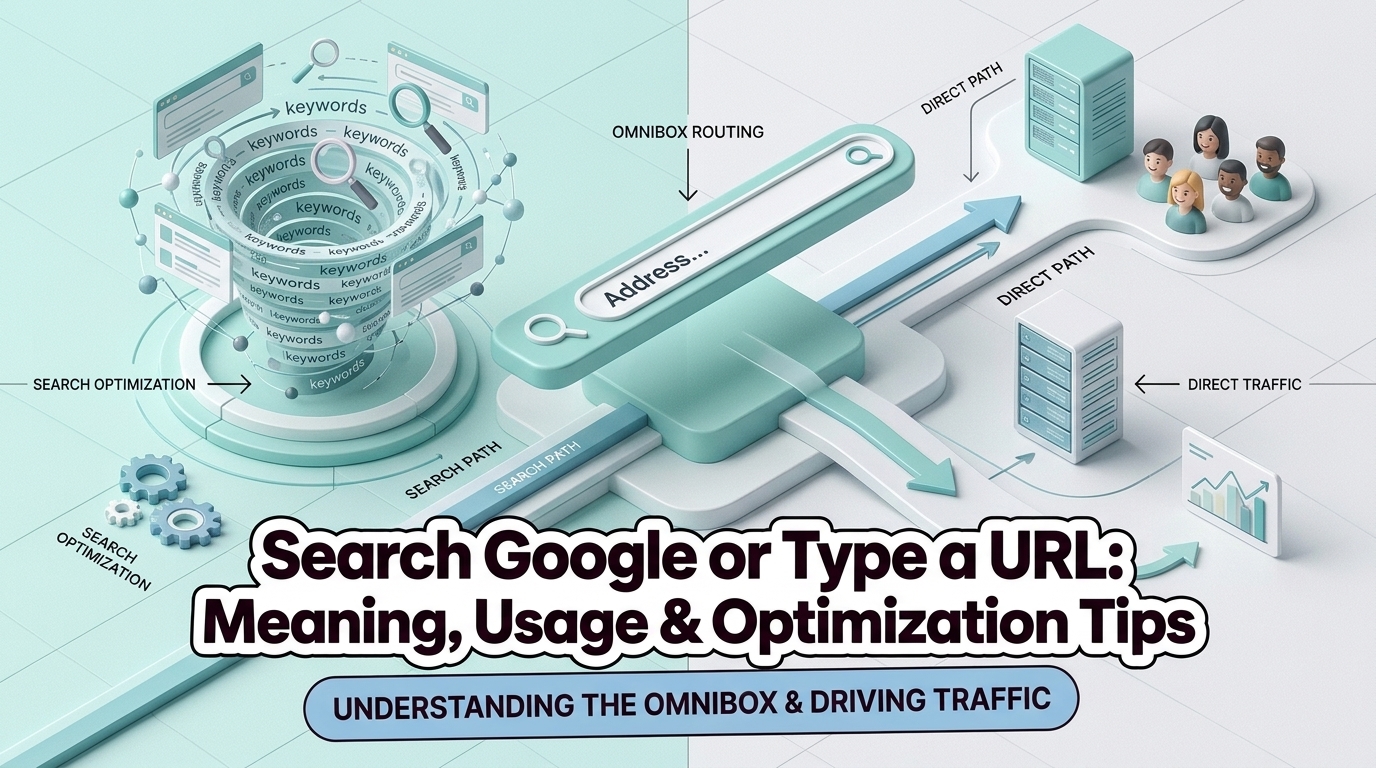
The moment you open a new tab or click into your browser’s address bar, you’re greeted with a familiar prompt: "Search Google or type a URL." It’s a small but powerful feature that bridges the gap between searching the web and navigating directly to a website. Yet, despite its ubiquity, many users—and even marketers—don’t fully understand how it works or how to use it effectively.
This guide breaks down what the prompt means, why it appears, and how to leverage it for faster, more intentional browsing. Whether you’re a casual user looking to streamline your workflow or a marketer optimizing for both search and direct traffic, you’ll learn how to make the most of this everyday tool.
What Does "Search Google or Type a URL" Mean?
The "Search Google or type a URL" prompt is the default text displayed in the address bar of modern browsers like Google Chrome, Microsoft Edge, and others when you open a new tab or click into an empty address field. It’s a visual cue designed to remind users of their two primary options:
- Search Google: Type a query (e.g., "best running shoes") and press Enter to see search results.
- Type a URL: Enter a website address (e.g., "example.com") and press Enter to navigate directly to that site.
Why It Exists
The prompt serves two key purposes:
- Convenience: It eliminates the need to visit Google’s homepage first—users can search from anywhere in their browser.
- Clarity: It distinguishes between searching (which relies on Google’s algorithm) and direct navigation (which bypasses search entirely).
For browsers, this feature aligns with their goal of making web access as seamless as possible. For Google, it reinforces its dominance as the default search engine, ensuring users stay within its ecosystem.
Why Does This Prompt Appear?
The prompt isn’t random—it’s the result of browser design choices, user behavior patterns, and technical functionality. Here’s why it shows up:
1. Browser Defaults
Most browsers (Chrome, Edge, Opera) default to Google as their search engine. When you open a new tab or click the address bar, the browser assumes you might want to search and nudges you toward Google. Firefox, on the other hand, may show a different prompt (e.g., "Search with Yahoo or enter address") depending on its default search engine.
2. The Address Bar’s Dual Role
Modern browsers combine the address bar and search bar into a single "omnibox." This hybrid tool handles both:
- URLs: Direct navigation (e.g., typing "wikipedia.org" takes you straight to Wikipedia).
- Searches: Keyword queries (e.g., typing "how to bake bread" triggers a Google search).
The "Search Google or type a URL" prompt is essentially a label for this dual functionality.
3. Google’s Influence
Google pays billions to be the default search engine in browsers like Chrome and Safari. The prompt subtly reinforces this partnership, steering users toward Google’s search results over competitors like Bing or DuckDuckGo.
How to Use It Effectively
The prompt is more than just a passive suggestion—it’s a tool you can use intentionally to save time and improve your browsing experience. Here’s how to make the most of it, whether you’re a casual user or a marketer.
For Users: Faster Navigation and Search
1. Searching Google
- How to do it: Type your query (e.g., "weather today") and press Enter. The browser will display Google’s search results.
- Pro tip: Use Ctrl+L (Windows/Linux) or Cmd+L (Mac) to quickly focus the address bar without touching your mouse.
2. Direct Navigation
- How to do it: Type a full URL (e.g., "https://github.com") or a partial one (e.g., "github.com") and press Enter. The browser will take you directly to the site.
- Pro tip: Skip the "https://"—browsers automatically add it for you.
3. Keyboard Shortcuts
- Ctrl+T (Windows/Linux) or Cmd+T (Mac): Open a new tab.
- Ctrl+L/Cmd+L: Jump to the address bar.
- Ctrl+Enter: Automatically add "www." and ".com" to a partial URL (e.g., type "github" + Ctrl+Enter → "www.github.com").
4. Address Bar Suggestions
As you type, the address bar may show suggestions based on:
- Your browsing history.
- Bookmarks.
- Popular websites (e.g., typing "face" might suggest "facebook.com").
Use the arrow keys to select a suggestion and press Enter to navigate.
For Marketers and SEOs: Optimizing for Both Paths
The "Search Google or type a URL" prompt highlights a critical distinction in how users find websites: search traffic vs. direct navigation. Marketers can optimize for both to maximize visibility.
1. Direct Navigation Traffic
- What it is: Users who type your URL directly into the address bar (e.g., "amazon.com").
- Why it matters: Indicates strong brand recognition and loyalty. These users bypass search engines entirely.
- How to optimize:
- Use a short, memorable domain name (e.g., "nike.com" instead of "buy-nike-shoes-online.com").
- Promote your URL in offline and online marketing (e.g., billboards, email signatures, social media).
- Encourage bookmarking (e.g., "Bookmark this page for easy access").
2. Search Traffic
- What it is: Users who find your site through a search engine (e.g., Googling "best running shoes").
- Why it matters: Captures users who don’t know your brand but are searching for solutions you offer.
- How to optimize:
- Target high-intent keywords (e.g., "buy running shoes online").
- Improve on-page SEO (e.g., meta titles, headers, internal linking).
- Build backlinks to increase domain authority.
3. Monitoring Traffic Sources
Use tools like Google Analytics to track:
- Direct traffic: Users who typed your URL directly.
- Organic search traffic: Users who found you via search engines.
- Referral traffic: Users who clicked a link from another site.
This data helps you understand whether your audience relies more on brand recognition (direct traffic) or search discovery (organic traffic).
How to Change or Customize It
The "Search Google or type a URL" prompt isn’t set in stone—you can customize or even disable it to better suit your needs. Here’s how:
1. Change Your Default Search Engine
If you prefer a search engine other than Google (e.g., Bing, DuckDuckGo, or Ecosia), you can change it in your browser settings.
Chrome
- Open Chrome and click the three-dot menu (⋮) in the top-right corner.
- Select Settings > Search engine.
- Click the dropdown menu next to "Search engine used in the address bar" and choose your preferred option (e.g., Bing, DuckDuckGo).
- The prompt will now reflect your chosen search engine (e.g., "Search Bing or type a URL").
Edge
- Open Edge and click the three-dot menu (⋯) > Settings.
- Go to Privacy, search, and services.
- Under "Services," click Address bar and search.
- Select your preferred search engine from the dropdown menu.
Firefox
- Open Firefox and click the three-line menu (☰) > Settings.
- Go to Search.
- Under "Default Search Engine," choose your preferred option (e.g., Yahoo, DuckDuckGo).
2. Disable the Prompt (Advanced)
If you find the prompt distracting, you can disable it using browser flags or extensions. Note that this requires some technical know-how and may not work in all browsers.
Chrome/Edge
- Type
chrome://flags(Chrome) oredge://flags(Edge) into the address bar and press Enter. - Search for "omnibox" in the flags search bar.
- Look for a flag like "Omnibox UI Hide Steady-State URL Path" or "Omnibox UI Hide Default Text."
- Set the flag to Disabled and restart your browser.
Extensions
Some browser extensions (e.g., "Custom New Tab Page" for Chrome) let you customize or remove the prompt entirely. Search your browser’s extension store for options.
3. Use Bookmarks for Faster Navigation
If you frequently visit the same sites, bookmark them to bypass the address bar entirely:
- Navigate to the site you want to bookmark.
- Click the star icon in the address bar (Chrome/Edge) or press Ctrl+D (Windows/Linux) or Cmd+D (Mac).
- Choose a folder (e.g., "Bookmarks Bar") and click Done.
- Your bookmarked sites will appear in the bookmarks bar for one-click access.
Common Misconceptions
The "Search Google or type a URL" prompt is simple, but it’s often misunderstood. Here are some common myths—and the truths behind them.
Myth 1: "It Only Searches Google"
Reality: The prompt reflects your browser’s default search engine, not just Google. For example:
- If you set Bing as your default, the prompt will say "Search Bing or type a URL."
- Firefox may show "Search with Yahoo or enter address" if Yahoo is the default.
Myth 2: "Typing a URL Always Goes Directly to the Site"
Reality: While typing a URL should take you directly to the site, several factors can intervene:
- Typos: Misspelling a URL (e.g., "facebok.com") may trigger a search instead.
- DNS issues: If the domain doesn’t resolve (e.g., the site is down), the browser may show an error or search results.
- Redirects: Some sites use redirects (e.g., "go.example.com" → "example.com"), which may briefly show a search-like page.
Myth 3: "This Prompt Affects SEO"
Reality: The "Search Google or type a URL" prompt is a browser UI feature, not a ranking factor. It has no direct impact on SEO. However:
- Indirectly, it influences user behavior. If users rely on the address bar for searches, they may be less likely to visit Google’s homepage, which could affect click-through rates for some queries.
- Brand searches (e.g., typing "amazon" into the address bar) can lead to direct navigation, which Google may interpret as a signal of brand strength.
Myth 4: "You Can’t Customize It"
Reality: As shown earlier, you can customize the prompt by:
- Changing your default search engine.
- Using browser flags or extensions to disable it.
- Leveraging bookmarks for faster navigation.
Key Takeaways
The "Search Google or type a URL" prompt is a small but powerful feature that shapes how we navigate the web. Here’s what you need to remember:
- It’s a gateway: The prompt lets you choose between searching Google (or your default search engine) and typing a URL directly.
- It’s browser-dependent: The exact wording varies based on your browser and default search engine.
- It’s customizable: You can change your default search engine, disable the prompt, or use bookmarks to streamline navigation.
- It matters for marketers: Optimizing for both direct navigation and search traffic can help you capture more visitors.
- It’s not an SEO factor: The prompt itself doesn’t affect rankings, but it does influence user behavior.
Try It Yourself
Open a new tab in your browser and test the prompt:
- Type a search query (e.g., "best coffee shops near me") and press Enter.
- Type a URL (e.g., "wikipedia.org") and press Enter.
- Notice how the browser handles each input differently.
By understanding and using this feature intentionally, you can browse the web more efficiently—and if you’re a marketer, capture traffic from both search and direct navigation.